Photos, documents, projects and personal files can disappear in an instant—because of user error, hardware failure, malware or an accidental deletion. Nevertheless, many Windows users still create backups irregularly or incompletely.
A backup is only useful if the right data is protected regularly and can actually be restored when needed.
Mistake 1: Not creating regular backups
The most common mistake is also the most obvious: many users only think about backups after a problem has already occurred.
A failed drive, encrypted computer or accidentally deleted file cannot be recovered by setting up a backup afterwards. A backup is only helpful if it already exists before data loss occurs.
Files that are stored exclusively on the computer are particularly vulnerable:
- Personal photos and videos
- Business documents
- Tax and financial records
- Locally stored emails and archives
- Project files
- Login details and configuration files
A backup should run automatically according to a fixed schedule. The more frequently important files change, the shorter the backup interval should be. For many private users, a daily backup is sufficient. Business-critical files may require more frequent backups.
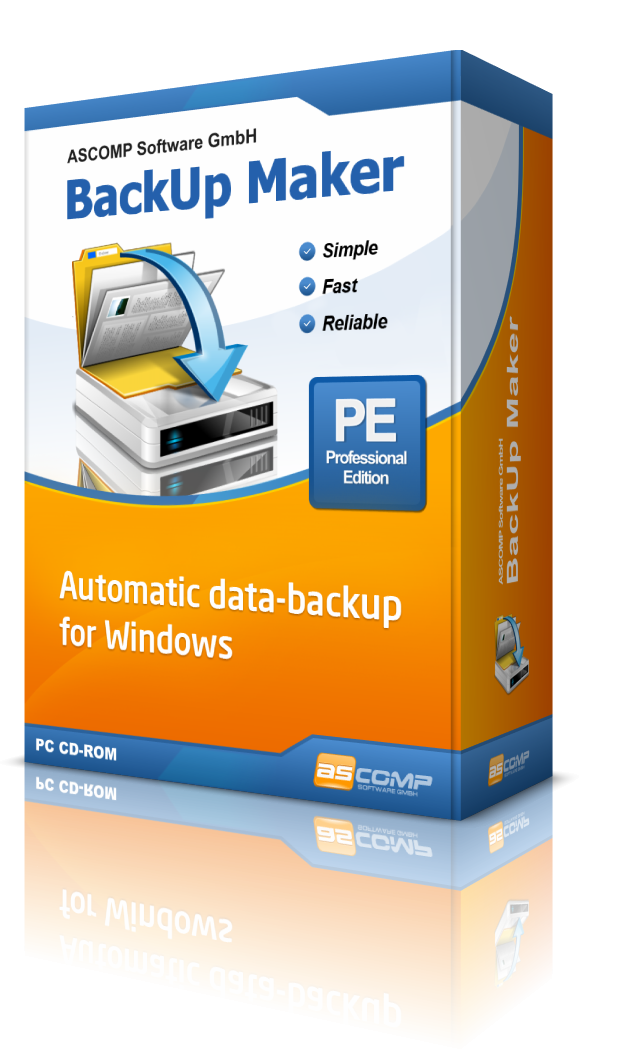
With BackUp Maker, backups can be automated according to a schedule or triggered by specific events. Users can select individual files and folders instead of backing up the entire computer every time.
Mistake 2: Creating only complete system images
A complete system image, also known as a disk image, can be useful in certain situations. It contains not only personal files, but also Windows, installed applications, system settings and, in some cases, partition information. After a serious system failure, an image can help restore an earlier system state.
However, a complete image is often not the most efficient solution for regularly backing up personal files.
Why system images can be impractical for everyday backups
System images work at drive or block level. They therefore do not only protect important documents, but also large amounts of system and application data. This can result in several disadvantages:
- Backups require significantly more storage space.
- Creating the backup can take longer.
- Frequent backups place a greater load on drives and networks.
- Restoring individual files can be less convenient, depending on the imaging software.
- Multiple backup versions can consume considerable storage space.
- An image may be tied to a specific system and partition configuration.
System images are not inherently unreliable. A correctly created and intact image can be an effective way to restore an entire system. However, restoring an image is technically more demanding than restoring individual files.
Problems can occur because of:
- Corrupted or incomplete backup files
- Changed partition layouts
- New or different storage hardware
- Missing drivers
- An unavailable recovery environment
- A backup image stored on the same physical drive
- Encryption or an inaccessible storage location
- A recovery process that has never been tested
The correct conclusion is therefore not that system images are generally unsafe. Rather, a system image should not be the only backup method.
For personal files, file-based backups are usually more flexible. They can include selected files and folders and, if required, only new or modified files. BackUp Maker supports incremental and differential backups, multiple backup generations, and compressed and encrypted backup archives.
A practical backup concept can therefore combine two levels:
- Regular file-based backups for personal and business data
- Occasional system images for comprehensive system recovery
Mistake 3: Storing the backup on the same drive as the original data
A second partition on the same hard drive may initially appear to provide additional protection. However, if the entire drive fails, both the original data and the backup are affected.
The same applies to malware. Ransomware can potentially encrypt not only local files, but also connected or accessible backup drives.
It is safer to store backups on a separate destination, such as:
- An external hard drive
- A NAS device
- A separate computer
- Cloud storage
- A remote web server
For particularly important data, an offline backup is also recommended. An external drive should be disconnected after the backup and stored securely. This prevents it from remaining permanently accessible if the computer is attacked.
Mistake 4: Keeping only one backup version
A backup does not automatically protect against every type of data loss. If a file is accidentally modified or deleted and an automated backup runs afterwards, the incorrect or incomplete version may replace the previous one.
That is why it is important to keep a history of several backup versions instead of only one current copy. Depending on the importance of the data, a suitable strategy might include:
- Several daily backups
- Several weekly backups
- Additional monthly backups
- A long-term archive version
The appropriate number of versions depends on the available storage space and the level of risk. What matters is that older versions are not deleted immediately when a new backup is created.
BackUp Maker supports multiple backup generations. This allows users to restore an earlier data state—for example, a version from several days or weeks ago.
Mistake 5: Never testing the restoration process
A completed backup is not proof that all data can actually be restored when needed.
Many users only check whether a backup file exists. That is not enough. A file may be corrupted, a password may be missing or the storage location may be inaccessible at the critical moment. The recovery software and any required boot media should also be available and familiar.
A simple test can include the following steps:
- Restore a file from the backup to a different location.
- Check whether it opens correctly and is complete.
- Test older backup versions.
- Check encrypted archives using the correct password.
- For system images, verify the recovery method and recovery media.
For important systems, restoration should be practised regularly on a separate device or in a suitable test environment. This ensures that the entire process works before a hardware failure occurs.
Effective backups do not have to be complicated
Reliable Windows data protection does not necessarily require a single complete system image. In many cases, a combination of automated file-based backups, multiple backup versions and a separate storage location is more practical for everyday use.
System images still have their place. They can simplify the restoration of a severely damaged Windows installation or help recover an entire system after a drive failure. However, personal files should not be protected exclusively through system images.
More important than creating the largest possible backup is having a system that works automatically in everyday use:
- Back up important files regularly.
- Include only necessary data in daily backups.
- Keep multiple backup versions.
- Store backups separately from the original data.
- Encrypt backups containing sensitive information.
- Test the restoration process regularly.
With BackUp Maker, Windows users can select files and folders, define automatic schedules, manage multiple backup generations and store backups locally, on a network or in the cloud. This creates a backup strategy that is not only available, but also practical to use when data needs to be recovered.
Author: Andreas Stroebel / ChatGPT
Automatic data backup with ASCOMP BackUp Maker
Simplify your data protection with BackUp Maker: Your reliable solution for automated backups, secure storage, and easy data recovery.
A free version of the software is available for private use.